
Download images from FIFISH V6

A couple of quick tips when downloading photos or videos from your FIFISH V6:

  • Best microSD card to use is series 10, 64GB microSD card, formatted as EXFAT
  • Make sure your devices are all fully charged before you start copying files
  • In the FIFISH App, go to MEDIA, DEVICE, choose your media type and press and hold the thumbnail in order to activate the “selection function”. You should see three lime-green buttons appear at the bottom of the screen. Select the images you want to copy, START, then choose where you want to send the files

You can find an online video tutorial at QYSEA SUPPORT for further help

And if you are having problems downloading the image files to microSD, try again with a brand new card.
Shipping BlueROV2

We just want to remind you all that Blue Robotics has updated their recommendations for shipping the BlueROV2. Remember to:

  • Remove vent during shipment
  • Wherever possible, avoid transporting the ROV in high temperature environments
  • Inspect cable penetrators carefully before each dive, especially after transportation
  • Perform a vacuum test BEFORE EACH DIVE
  • Lift the ROV only from the tether (with strain relief in place). Do not lift from any other cables.

FIFISH V6 firmware upgrades

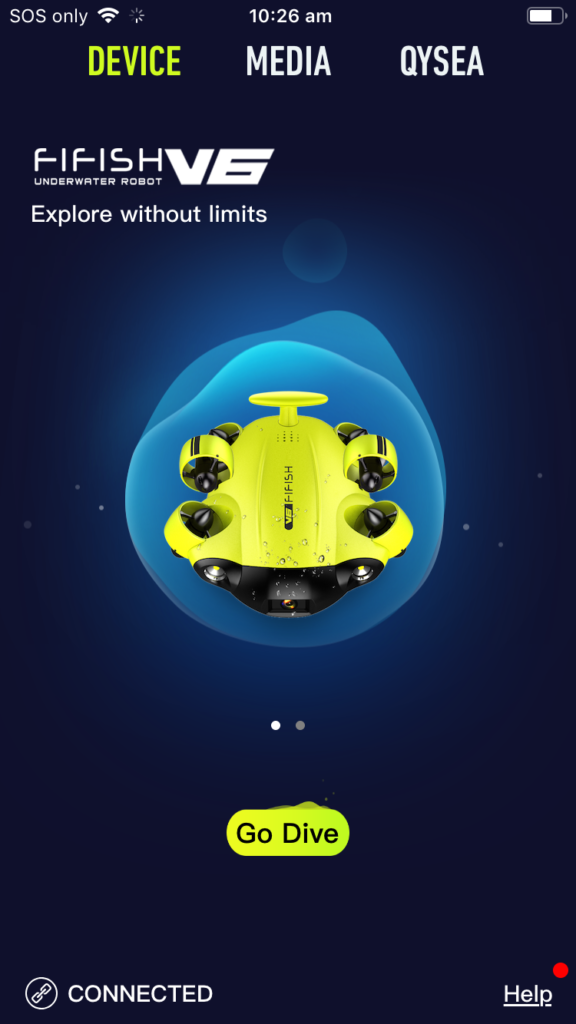
It is good to update your V6 firmware periodically for new app features (like curvature settings), function enhancements, and bug fixes. The FIFISH App will alert you when new firmware updates are available by displaying a red dot next to the Help menu in bottom right corner of FIFISH App main screen (see photo).

Instructions on how to complete firmware updates can be found at: QYSEA support Make sure your devices (mobile phone, remote controller, and ROV) are fully charged before you start the upgrade process.

Remember to recalibrate the V6 gyro/accelerometer and the magnetometer sensors after each firmware upgrade. Again, detailed instructions can be found at: QYSEA support