
Battery management

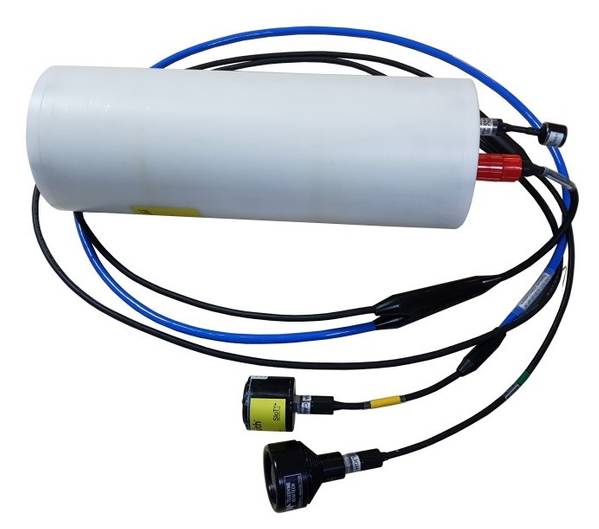
Battery management and safety are important skills for ROV use.  Important tips are:

  1. Don’t let the battery voltage drop too low (see manufacturer’s specs)
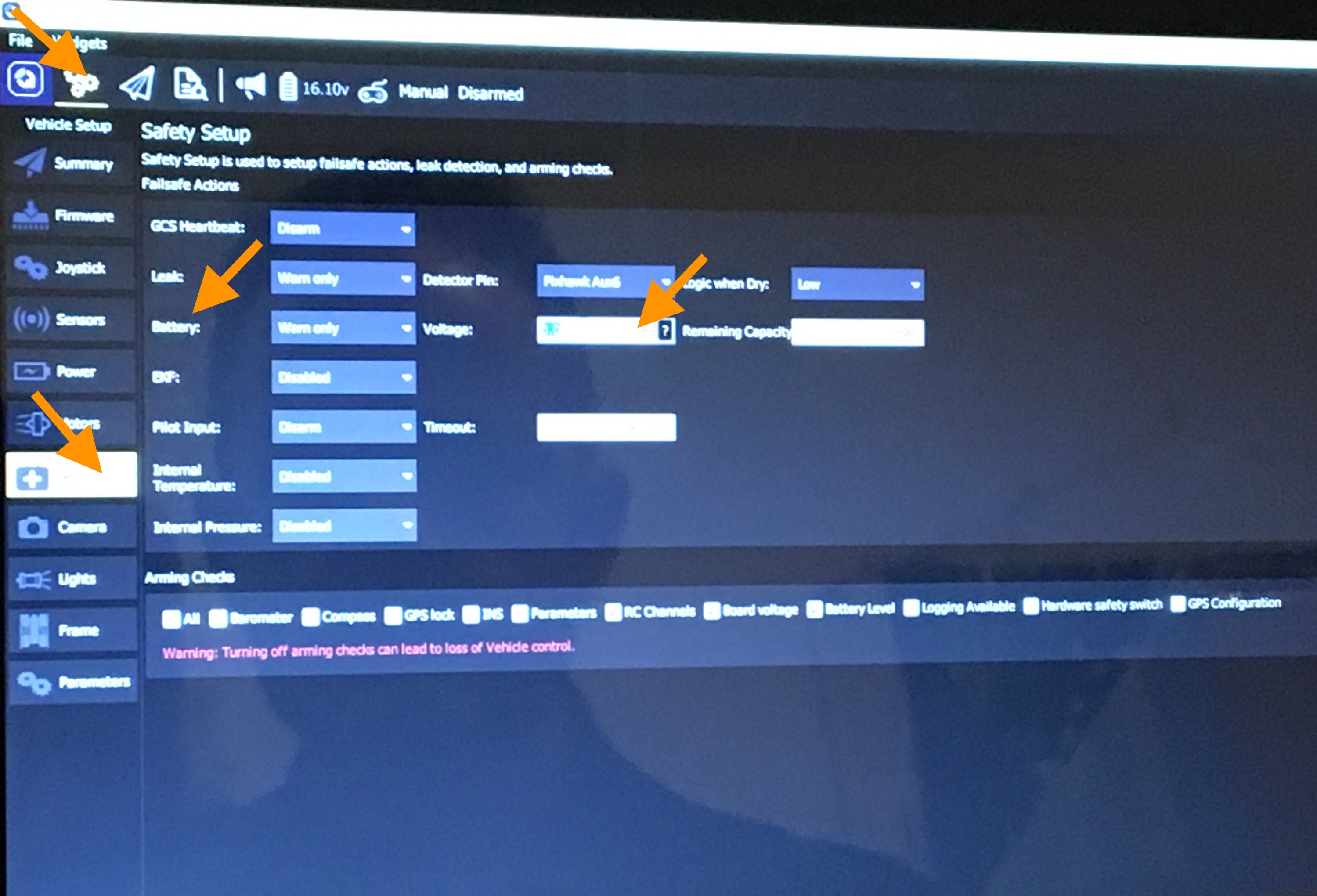
  2. Set low-voltage alarms in QGroundControl to alert you when you need to swap batteries
  3. We insert our batteries in fire-proof bags for both storage and charging
  4. When travelling, we carry batteries in a metal tool box
  5. Always follow battery manufacturer’s safety procedures
  6. Never leave a charging battery unattended

Check our Tech Space for a video on how to quickly swap a battery for the BlueROV2 or set low voltage alarms in QGC.

You can also find more information about battery safety on sites like:

Set low-voltage alarms

Not so obvious but an important tool is the ability to set battery low-voltage alarms in QGroundControl. You will need to consult with your battery manufacturer to determine the minimum safe voltage for the ROV battery you are using. Then, to set the alarm in QGC, go to:

  • Settings
  • Safety
  • Battery
  • Voltage

And enter your desired low voltage value.

Fun “CatScan”

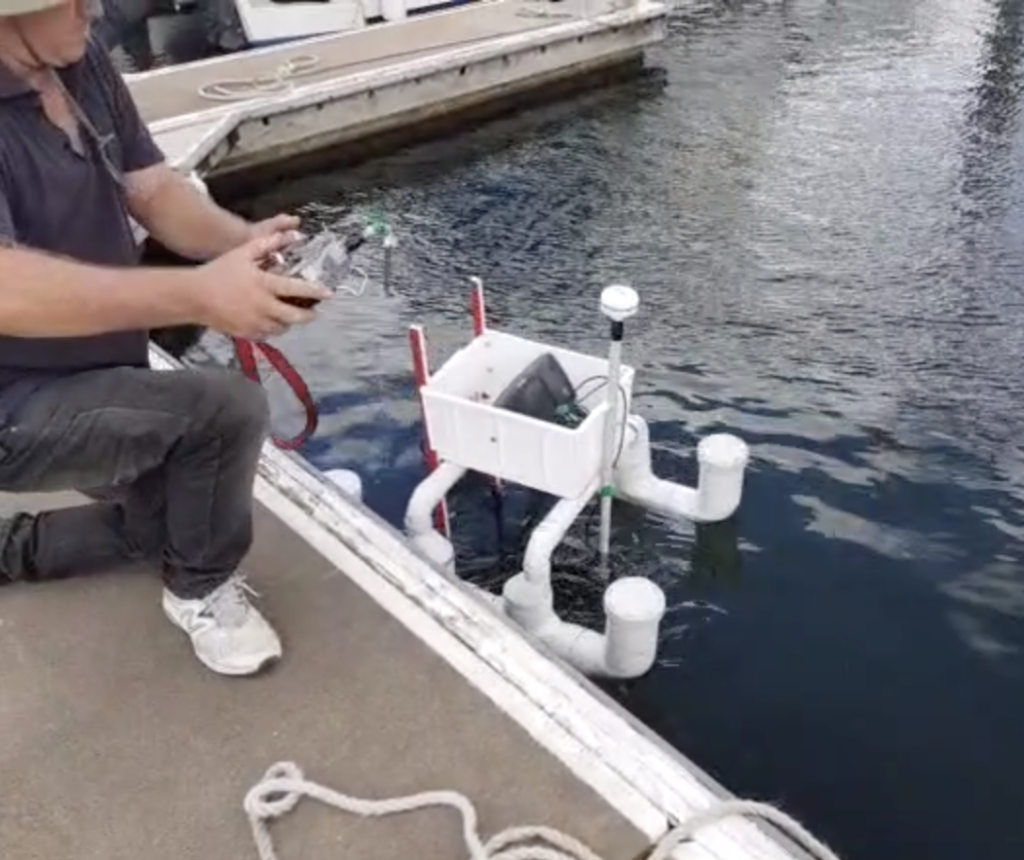
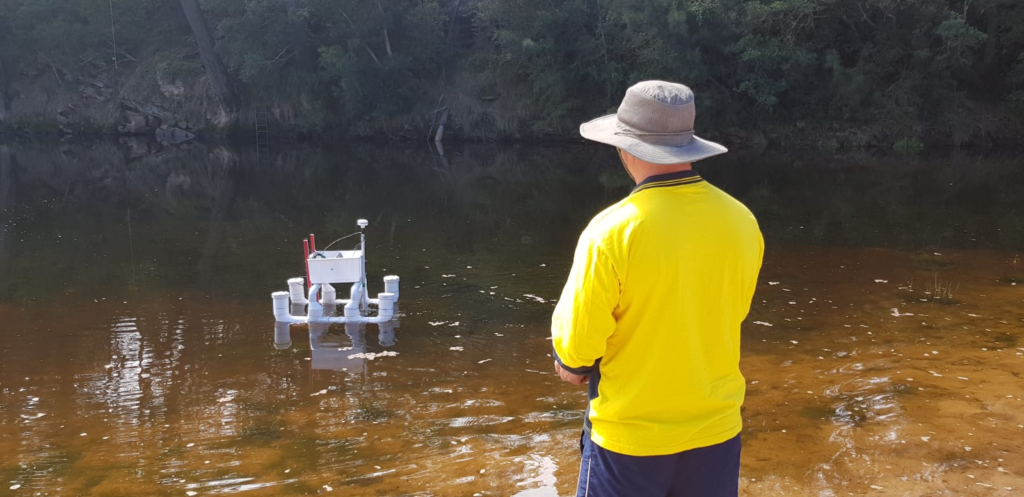
Just thought we would share a bit of fun, creative construction with PVC pipe and Blue Robotics T200s to make a remote-controlled platform for a sidescan unit

Remote controlled CatScan

Logitech F710 with Mac

For all you Mac users out there, the best way to connect your Logitech F710 controller for use with QGroundControl is:

        • Switch mode to “D”

        • Have the controller’s dongle ready to insert into your USB port
        • Push the central button with the Logitech logo to “wake up” your controller.  The green light should flash a few times

        • Insert the USB dongle while the controller light is flashing

Your Mac should now recognize the controller.

To confirm, go to the Apple Menu / About This Mac / System Report / Hardware/ USB and look for Logitech Wireless Gamepad